
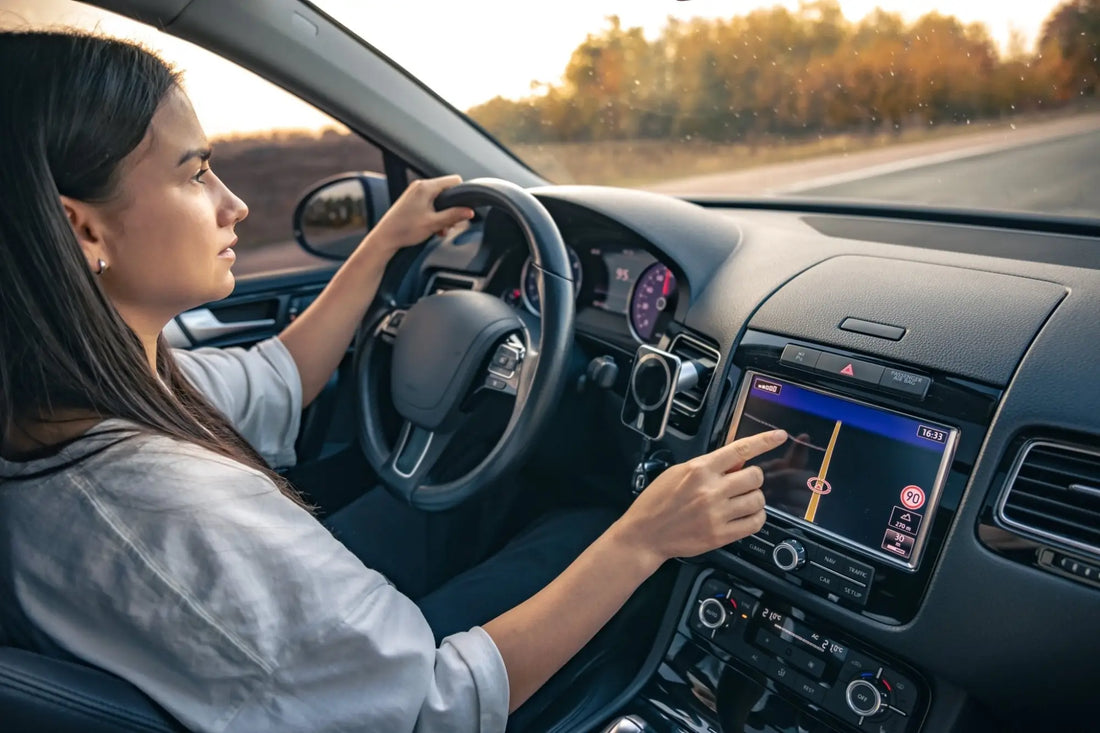
How to Play Music from an Android Car Radio – A Practical Guide
Introduction
For many drivers, music is an essential part of the journey. Playing your favorite songs, podcasts, or audiobooks from your phone through your Android car stereo makes every drive more enjoyable. In this guide, we'll explain step-by-step how to connect your devices to enjoy this feature seamlessly.
Benefits of Playing Music from Android through Your Car Stereo
- Better sound quality – Listening to music through car speakers offers better sound than smartphone speakers.
- Driving safety – Automatic Bluetooth connection allows you to control your music without touching your phone.
- Easy access to music – Apps like Spotify, YouTube Music and Tidal provide access to millions of songs.

Ways to Connect Android to Car Radio
1. Bluetooth connection
Bluetooth is the most popular way to connect your phone to your car stereo in modern vehicles. Here's how:
- Check compatibility – Make sure your car audio system supports Bluetooth.
- Turn on Bluetooth on Android – In your phone settings, turn on Bluetooth and select the device to pair.
- Device pairing – On the radio screen, select your phone from the list of available devices.
- Select a music player – Once your devices are paired, select the music player app on your phone.
Popular keywords:
- "Playing music via Bluetooth"
- "Bluetooth in Android Car"
2. Playback via AUX Cable
If your car doesn't support Bluetooth, you can use an AUX cable. Here are the steps:
- Check the availability of the AUX input – Older car models often have an AUX input.
- Connect the AUX cable – Connect one end of the cable to your phone and the other to the AUX input on your radio.
- Set audio source – On the radio, select AUX as the audio source.
- Open your music app – Play your favorite music using the app of your choice.
Popular keywords:
- "AUX Cable for Android in the Car"
- "Playing music via AUX cable"
3. USB-C and Lightning to AUX Adapters
Newer smartphone models that do not have a headphone jack may require a USB-C or Lightning to AUX adapter.
- Choose the right adapter – Check if the adapter fits your phone model.
- Connect the adapter and AUX cable – Use an adapter to connect your phone to the radio.
- Configure the radio – Select AUX mode as the audio source.
Popular keywords:
- "USB-C to AUX Adapter for Android in Car"
- "How to Play Music in Your Car Without a Headphone Jack"
4. USB connection
Playing music via USB allows you to charge your phone and stream audio simultaneously. Here's how:
- Connect the USB cable – Connect your phone to the radio using a USB cable.
- Set the radio to USB mode – Select USB as the audio source.
- Play music – On some devices, the music will start playing automatically, others may require you to manually select a player.
Popular keywords:
- "Playing Music via USB Android"
- "USB Music in the Car"
5.Android Auto – Full Integration
Android Auto offers full integration of your phone with your car's system, giving you access to maps, calls and music.
- Install Android Auto – Download the app from the Google Play Store if it is not already installed.
- Connect your phone with a USB cable – Most models support Android Auto only via USB cable.
- Set up Android Auto – The Android interface will appear on the car screen.
- Select a music app – Use any music app installed on your phone.
Popular keywords:
- "Android Auto for Music"
- "Music via Android Auto"
Best Android Apps to Play Music in Your Car
Choosing the right app can make it easier to enjoy music while driving:
- Spotify – The most popular streaming application offering a wide music catalog.
- YouTube Music – For YouTube Premium users, it offers ad-free music.
- Apple Music – Runs on Android, giving you access to a huge library.
- Deezer – An alternative to Spotify with unique playlists and radio stations.
Popular keywords:
- "Best Android Music Apps for Your Car"
- "Music Apps for Android"
Most Common Problems and Solutions
You may encounter problems when playing music from your Android in your car:
- Bluetooth connection problem – Try pairing the devices again.
- Poor sound quality via AUX – It is worth checking the quality of the cable or using a better one.
- No sound via USB – Make sure the radio is set to USB mode.
- Android Auto compatibility – Not all cars support Android Auto; check your radio's compatibility.
Summary
Playing music from your Android car stereo is easier than you think! Whether you're using Bluetooth, AUX, USB, or Android Auto, there are many ways to connect your devices. Enjoy music on your own terms and make every trip more enjoyable!