

How to use Android Auto in Audi A3?
Share
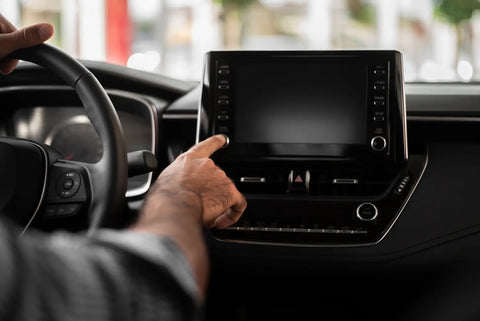
Android Auto is a tool that allows for safer and more convenient use of smartphone apps while driving. Thanks to integration with the Audi A3's multimedia system, users can use apps like Google Maps, Spotify, and WhatsApp without taking their eyes off the road. In this step-by-step article, we'll show you how to install and configure Android Auto in the Audi A3, how to use its features, and what benefits this technology brings.
1. What is Android Auto and how does it work?
Android Auto is an application developed by Google that allows you to connect your smartphone to your car's multimedia system. Once connected, your car's screen becomes an extension of your smartphone, allowing you to view maps, play music, and manage calls and messages. Everything is optimized for driving, making operation simple and safe.
Benefits of using Android Auto:
- Security: The ability to use the application without having to look at the smartphone.
- Intuitive navigation: Access to Google Maps and Waze, which offer accurate directions and traffic information.
- Entertainment: Easy access to music apps like Spotify, YouTube Music, and Podcasts.
- Hands-free communication: Thanks to Google Voice Assistant, you can manage calls and messages without taking your hands off the wheel.
2. How to install and configure Android Auto in Audi A3?
To use Android Auto in your Audi A3, basic installation and configuration steps are necessary. Here's a step-by-step guide.
Step 1: Compatibility Check
- Make sure you have a smartphone with Android version 6.0 (Marshmallow) or higher.
- Check if your Audi A3 supports Android Auto (most models from 2017 have this feature).

Step 2: Download the Android Auto app
- Download the Android Auto app from the Google Play Store. Most newer phones already have it built in, but older versions may require downloading.
Step 3: Connecting your phone to your car
- Turn on the car and connect your phone to the USB port in your Audi using a USB cable.
- Once connected, select "Android Auto" on your Audi multimedia screen.
- Your phone will ask you to grant permissions for Android Auto – accept them.
Step 4: Personalize Android Auto
- When you first launch Android Auto, it will ask you to adjust your settings. You can choose which apps appear on the screen, which notifications you want to see, and whether you want Google Assistant to be active while driving.
3. Using key Android Auto features in the Audi A3
Once you've installed and configured Android Auto, you can start using its features in your Audi A3. Below, we'll cover the most important ones.
Navigation with Android Auto
The biggest advantage of Android Auto is easy access to Google Maps and Waze. These allow you to view detailed routes, traffic information, and warnings about speed cameras and roadworks.
-
How to use Google Maps?
- Select the Google Maps icon on the Android Auto screen.
- Enter your destination using the keyboard or voice commands, for example, "Hey Google, take me to [destination]."
- Follow directions and traffic information on screen.
-
Waze: Waze is an alternative to Google Maps, offering traffic information based on data from its user community. To use Waze, you must have the app installed on your phone.
Hands-free communication
Android Auto lets you safely manage your phone calls, text messages, and WhatsApp messages using voice commands. You can say, "Hey Google, call [contact]" or "Hey Google, send a message to [contact]," followed by the text of your message.
Playing music and podcasts
With Android Auto, you can listen to your favorite music from apps like Spotify, YouTube Music, Amazon Music, and Google Podcasts. You can control playback with your voice or using the touchscreen.
- Voice control of music: Say "Hey Google, play [song name] on Spotify" to start playing.
4. Troubleshooting Android Auto in Audi A3
Sometimes you may experience problems connecting or working with Android Auto. Here are some solutions to common problems:
USB connection problem
- Solution: Try using a different USB cable, preferably the original or a high-quality replacement. Check if the USB port on your Audi is working properly.
Android Auto won't start
- Solution: Make sure your phone has Android Auto enabled and all required permissions have been granted. You may need to restart your phone or car's infotainment system.
Bluetooth problems
- Solution: If you're using Android Auto wirelessly, make sure Bluetooth is enabled on your phone and paired with your car. Also, check that your phone and car are within Wi-Fi range if the feature requires an additional connection.
Benefits of using Android Auto in the Audi A3
Using Android Auto in the Audi A3 brings many benefits that increase driving comfort and safety:
- Safe driving: The ability to operate the application using voice commands and large, legible icons on the screen allows you to focus on the road.
- Quick access to information: Maps, traffic forecasts, route information and road conditions are always at hand.
- Entertainment and communication: Android Auto combines access to music, podcasts and calls, giving you full control of your entertainment system without taking your hands off the wheel.
Summary
Using Android Auto in your Audi A3 is a simple way to increase comfort and safety while driving. With easy access to navigation, entertainment, and communication, you can focus on driving while still having all the functions you need at your fingertips. Android Auto setup is quick and intuitive, and you'll feel the benefits from the very first start. If you haven't tried it yet, it's time to change that and enjoy the new capabilities of your Audi A3!